
December 2026 TEE OAMS deadline: 24 November 2026. IGNOU extended the original 20 November date in its 20 November 2026 official notice. This is a session-specific extension.
Official IGNOU OAMS manual screenshots
These screenshots show the official process; a date displayed in the manual can be older than the latest extension notice.
IGNOU has introduced the Online Assignment Management System (OAMS) for December 2026 Term-End Examination assignments. Eligible students of ODL (distance learning) and Online programmes can now submit course-wise assignments through their IGNOU Samarth account instead of searching for separate Regional Centre-wise Google Forms.
The initial OAMS notice set 20 November 2026; IGNOU later extended the December 2026 TEE OAMS deadline to 24 November 2026.
Already submitted? If you have already submitted the same assignments at your Study Centre, Regional Centre or through the applicable IGNOU LMS, do not upload them again.
IGNOU OAMS Assignment Submission Link 2026
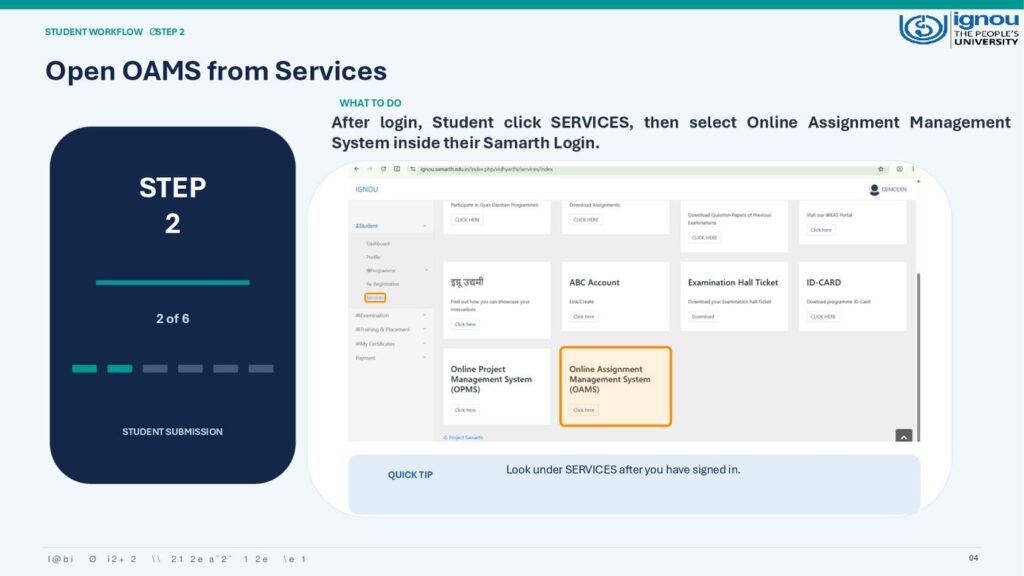
Open the official IGNOU Samarth Student Portal. Log in and go to Services → Online Assignment Management System (OAMS) to see the courses eligible for submission.
The login link opens IGNOU’s official website. OAMS is accessed inside your account; no separate RC-wise submission form is needed for this process.
How to Submit IGNOU Assignments on OAMS
- Log in to IGNOU Samarth.
Use your enrolment number, Samarth password and captcha at the official login page.
- Open OAMS.
After logging in, click Services and select Online Assignment Management System (OAMS).
- Select your course.
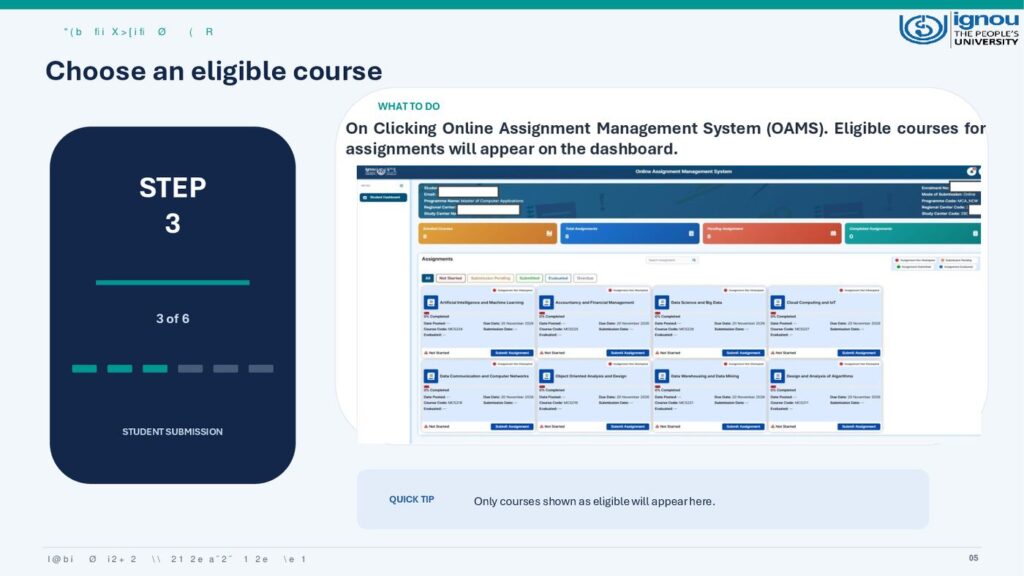
Only eligible courses will appear on your OAMS dashboard. Select the course for which you need to submit an assignment.
- Read and accept the guidelines.
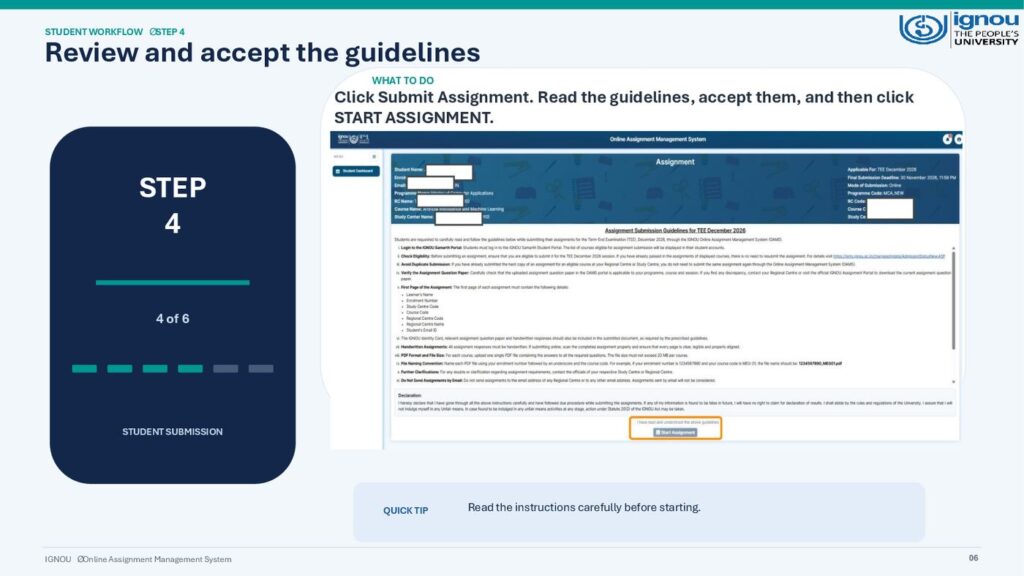
Click Submit Assignment, read the instructions, tick the declaration and choose Start Assignment.
- Upload the assignment PDF.
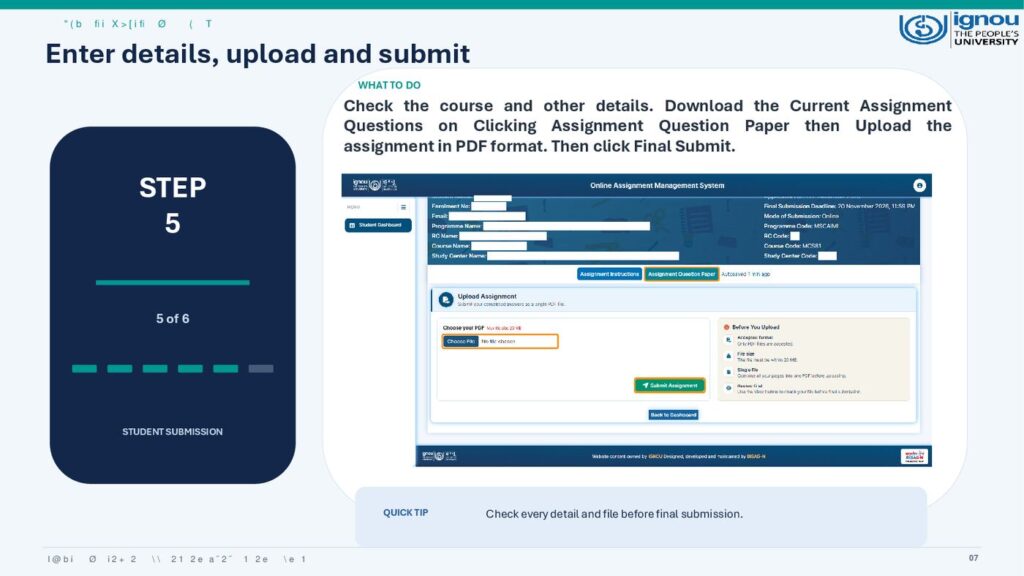
Verify the course and assignment question paper, then upload one clear, handwritten, scanned PDF of up to 20 MB per course. Check the file before submission.
- Complete and verify submission.
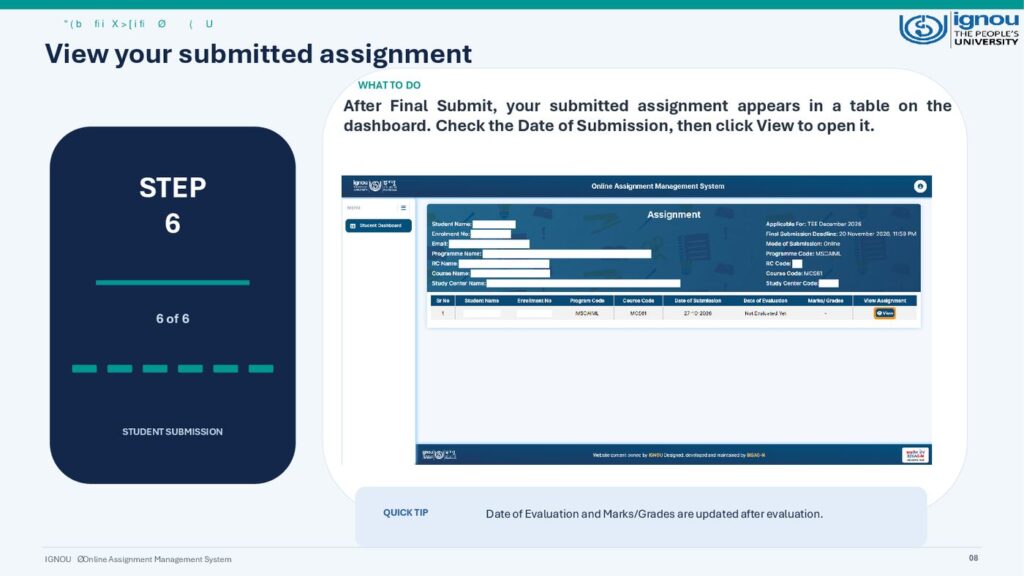
Click the final submission button. Return to the dashboard, check the submission date and use View to confirm the submitted file. Save proof for your records.
OAMS Assignment PDF Rules and Required Details
- Handwritten work: Write assignment answers by hand and scan every page clearly in the correct order.
- One PDF per course: Combine all required answers for one course into a single PDF, maximum 20 MB. Do not mix different course assignments.
- First-page details: Include your name, enrolment number, Study Centre code, course code, Regional Centre code and name, and email ID.
- Supporting pages: Include your IGNOU identity card and the applicable assignment question paper as required by the OAMS instructions.
- PDF filename: Use enrolment number, underscore and course code without the hyphen, for example 1234567890_MEG01.pdf.
- No submission by email: The OAMS student guide says assignments emailed to a Regional Centre or other email address will not be treated as valid OAMS submissions.
Important: Check the exact assignment question paper for your programme and session before uploading. If your course is missing, your details are incorrect or the portal shows a different deadline, check the official OAMS notice and contact your Regional Centre or Study Centre. Do not submit the same assignment twice.
Already Submitted at Your Study Centre or LMS?
As clarified by IGNOU, learners who have already submitted their assignments to their Study Centre or Regional Centre, or through the applicable Online LMS, do not need to resubmit those assignments through OAMS. Keep your original submission receipt or acknowledgement.
What If OAMS Is Not Showing My Course?
OAMS displays courses available for your enrolment and exam session. Check that you have logged into the correct Samarth account and that you are eligible to submit the course assignment. If a course is still missing, contact your allotted Study Centre or Regional Centre for clarification. Avoid using old Google Forms from another centre.
OAMS vs OPMS: Assignment or Project?
OAMS is for course-wise tutor-marked assignments. OPMS is a separate system for projects, dissertations, internships and similar reports. Use the correct service in Samarth according to your course requirements.
Useful IGNOU Assignment Links
Frequently Asked Questions
What is the IGNOU assignment submission link for December 2026?
Use the official IGNOU Samarth login. After login, open Services → Online Assignment Management System (OAMS).
What is the OAMS assignment last date?
For the December 2026 TEE, the revised OAMS online assignment submission last date is 24 November 2026, according to the official IGNOU extension dated 20 November 2026. The earlier notice had stated 20 November 2026.
Can ODL and Online programme students use OAMS?
Yes. IGNOU announced OAMS for eligible learners in both ODL and Online programmes. Only courses available for your account can be submitted.
Do I need to upload again if I already submitted offline or on LMS?
No. IGNOU says assignments already submitted through the applicable Study Centre, Regional Centre or LMS do not need to be uploaded again through OAMS.
What format and file size does OAMS accept?
Upload a single PDF per course, up to 20 MB, containing clear scans of your handwritten assignment and required supporting pages.
Where can I see my submitted assignment?
Open the OAMS dashboard after final submission. Check the submission record and date, then click View to verify the uploaded file. Evaluation details may appear later.
Can I submit an IGNOU project through OAMS?
Projects, dissertations and internships have a separate Online Project Management System (OPMS). Do not upload a project as an ordinary course assignment.
Who can help if the OAMS portal has a technical problem?
The IGNOU Online LMS announcement lists [email protected] for OAMS technical support. For course or eligibility questions, contact your allotted Study Centre or Regional Centre.
Official notice checked on 21 November 2026 using IGNOU’s official OAMS notification and student manual. Always follow the latest instructions displayed in your IGNOU account.